ip
Stratify: User Guide
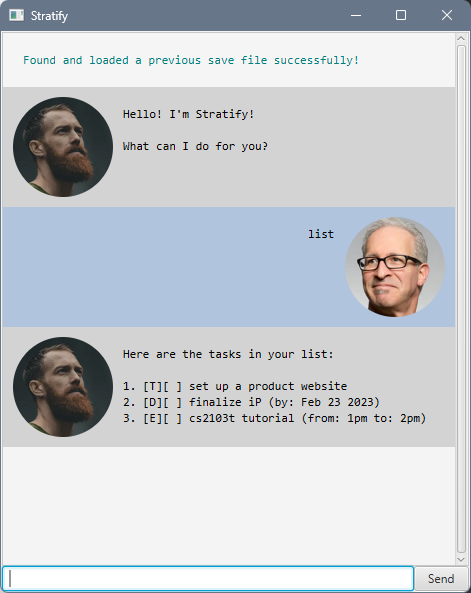
Stratify is more than just a task organizer; it’s a seamless experience designed to amplify your productivity.
A user-friendly, command-line-input based interface ensures efficient task handling without unnecessary complexities. Stratify empowers you to effortlessly manage your tasks, providing a streamlined approach to boost your productivity. Easy to use, Stratify eliminates the learning curve. Dive in, follow a few simple steps, and let it transform how you manage your tasks.
Quick Start
- Ensure that you have Java 11 or above installed on your computer.
- Download the latest
stratify.jarfrom here. - Copy the jar file into the folder that you want to use as the home directory for Stratify.
- Open up a command terminal,
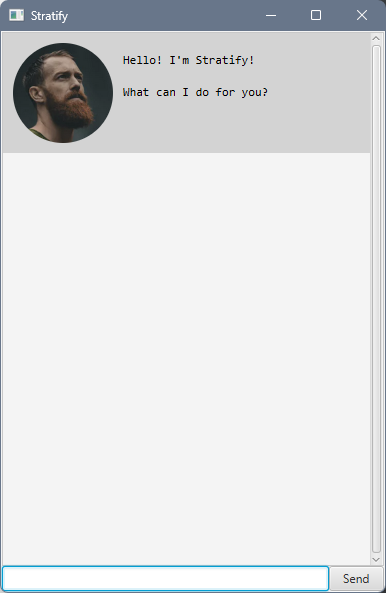
cdinto the folder you put the jar file in, and use thejava -jar stratify.jarcommand to run the application. A GUI similar to the below should appear.
Features
Listing your task list: list
Displays your task list, with all your added tasks within.
Example
list
- This lists all the tasks in your task list.
Ending the chat: bye
Ends the chat.
Example
bye
- This ends the chat, disabling the input, and prompts the user to exit.
Adding todos: todo
Adds a named todo, into your task list.
Format
todo <name>
Example
todo homework
- This adds a todo of the name
homeworkinto your task list.
Adding deadlines: deadline
Adds a named deadline, with a by date, into your task list.
Format
deadline <name> /by <by_date>
- The
<by_date>does not need to be a date, but can be formatted as a date.
- The supported date formats are
MMM d yyyyandyyyy-MM-dd.
Example
deadline read book /by Friday
- This adds a deadline of the name
read book, with a deadline byFridayinto your task list.
Adding events: event
Adds a named event, with, into your task list.
Format
event <name> /from <start_date> /to <end_date>
- The
<start_date>and<end_date>do not need to be dates, but can be formatted as dates.
- The supported date formats are
MMM d yyyyandyyyy-MM-dd.
Example
event cs2103t tutorial /from 1pm /to 2pm
- This adds an event of the name
cs2103t tutorial, with the start date at1pmand end date at2pm, into your task list.
Marking a task: mark
Marks a task as complete.
Format
mark <index>
- The
must be a valid index from the task list, meaning that the task must exist. - You can mark an already marked task again, but it does nothing.
Example
mark 1
- This marks the first task from your task list as complete.
Unmarking a task: unmark
Marks a task as incomplete.
Format
unmark <index>
- The
must be a valid index from the task list, meaning that the task must exist.
Example
unmark 1
- This marks the first task from your task list as incomplete.
- You can mark an already unmarked task again, but it does nothing.
Deleting a task: delete
Deletes a task from your task list.
Format
delete <index>
- The
must be a valid index from the task list, meaning that the task must exist.
Example
delete 1
- This deletes the first task from your task list.
Finding tasks: find
Finds a task from your task list.
Format
find <name>
Example
find work
- This finds and displays all tasks with the substring
workin it, such ashomework,working, or justwork, in the name of the task.- It doesn’t find from other argument values, such as
<by_date>in a deadline.
Undoing an action: undo
Undoes a change that you have made.
Format
undo [/by <steps>]
/by <steps>is an optional argument, so it does not have to be included. By default, if not included, it rolls back one change at a time.- The
<steps>is the number of steps to rollback by, which should be a positive integer.- You can only undo changes from the current session.
Example
User inputs:
todo assignment
undo
- This undoes the previous change, which is creating a todo called
assignment,- The task list is rolled back to its previous state, before that todo was created.
Example
User inputs:
todo assignment
list
deadline homework /by tomorrow
undo 2
- This undoes the previous two changes, which is creating a deadline called
homeworkand a todo calledassignment.listdoes not modify the anything, so is not included as a change.- The task list is rolled back to its previous state, before the todo and deadline were created.
Resizing your chatbot
The chatbot can be resized to fit your screen, by resizing the window.
Editing the data file
The data is saved as a human-readable file in [JAR file location]/data/save.txt.
Advanced users can modify the data file directly.
Caution
If the format of the save file is invalid, your save file will be discarded and replaced with a new save file, with an empty task list. It is recommended to have a backup of your save file if you have modified it directly.
FAQ
Q: How can I undo a change that I made?
A: Use the
undocommand to roll back your change.
Q: How can I transfer my data to another device?
A: Copy over the save file, and your data should be transferred.
Q: Why does save file fail to load?
A: Your save file is either in the wrong format, or stored in the wrong location.
Q: How can I tell if my command was successful?
A: If your command is successful, there will be a success message. Otherwise, there would be an error message.
Commands: Quick reference
| Command | Format |
|---|---|
list |
list |
bye |
bye |
todo |
todo <name> |
deadline |
deadline <name> /by <by_date> |
event |
event <name> /from <start_date> /to <end_date> |
mark |
mark <index> |
unmark |
unmark <index> |
delete |
delete <index> |
find |
find <name |
undo |
undo [/by <steps>] |
Command Syntax
Commands: Command refers to some text that a user can input, which results in the execution of some action, and displays something in the chat. The execution can be either successful or unsuccessful (gives error message).
namerefers to a word, or a group of words, that are within brackets or after a forward slash.- The
nameat the start of a command refers to the name of the command. names are trimmed, whitespace before and after it are removed.
- The
- Square brackets (
[,]) around an argument represents an optional argument, which does not have to be included. - Angled brackets (
<,>) around anamerepresents the name of the value of the argument. - Forward slash
/followed by anamerepresents the name of the argument.
Arguments: Argument refers to some text that starts with a forward slash, followed by possibly brackets, in the command line.
- For example, in a deadline command,
/by todayis an argument with the namebyand passes the valuetoday. The name of the value isby_date. - Arguments can be in any order, for example,
event cs2103t tutorial /to 2pm /from 1pm. - If the same argument is provided more than once, only the first instance of that argument is read.
For example, in
deadline cs2103t quiz /by today /by tomorrow, theby_dateis read astoday, andtomorrowis ignored. - Invalid or missing arguments (and their values), will display an error to the user.